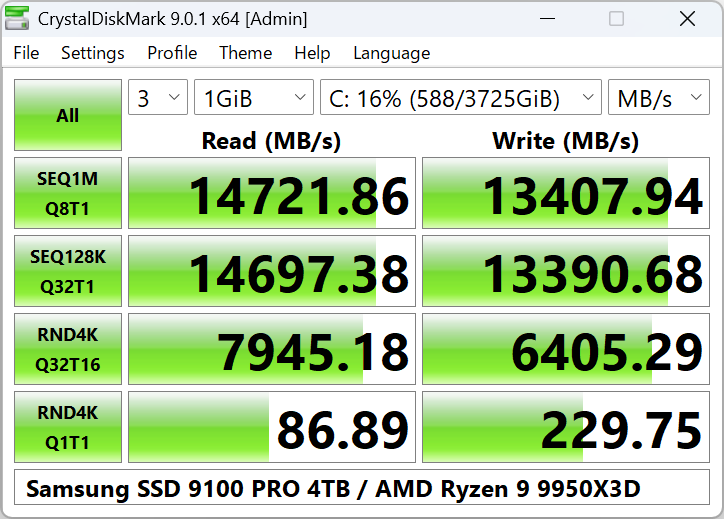
Standard Edition
Standard look. Default and NVMe SSD presets, themes (Dark, Flower, DarkRed). Ideal for most users.
Download →
CrystalDiskMark is a simple, free disk benchmark for Windows. Test sequential and random read/write on SSD, HDD, and NVMe drives.
CrystalDiskMark is a free, lightweight disk benchmark utility for Windows. It measures the read and write speed of your storage devices—including SSDs, HDDs, NVMe drives, and even USB flash drives or network drives—by running standardized tests and displaying results in MB/s, GB/s, IOPS, or latency (μs).
First released in 2007 by Crystal Dew World (CrystalMark Inc.), it has become one of the most widely used tools for comparing drive performance, checking if an upgrade was worth it, or troubleshooting slow storage. The program uses Microsoft DiskSpd under the hood for reliable, repeatable results. You can choose the test size (from 16 MiB to 64 GiB), number of runs, and use presets such as Default or NVMe SSD to match your hardware.
No installation is required if you use the portable ZIP version: just extract and run. CrystalDiskMark is available in Standard, Shizuku, and Aoi editions—all share the same benchmark engine and differ only in the user interface and themes.
Benchmarks help you verify that a new SSD or NVMe is performing as advertised, compare before and after a Windows or driver update, and identify whether slow file copies or long load times are due to the drive or something else. Many tech sites and YouTube channels use CrystalDiskMark in their reviews, so you can compare your numbers with published results when using the same test size and profile.
CrystalDiskMark works with almost any storage that Windows can see as a drive letter or path.
SATA SSDs, SATA HDDs, M.2 NVMe, M.2 SATA. Select the drive letter (C:\, D:\, etc.) and run. Use NVMe SSD profile for M.2 NVMe drives.
USB flash drives, external USB HDDs/SSDs. Use a small test size (e.g. 64–256 MiB) so the test finishes in a reasonable time. Run without admin if the drive doesn’t appear.
Mapped network shares (e.g. Z:\). Run CrystalDiskMark without administrator rights so the network drive shows in the drive list. Results reflect network + server storage speed.
Software RAID, storage spaces, or any volume Windows exposes as a disk. Benchmark the volume as a whole to see combined performance.
Trusted by millions to check storage performance. Lightweight, no install required (ZIP), and highly accurate.
Sequential and random read/write tests with configurable block size, queue depth, and threads. Powered by Microsoft DiskSpd.
Peak, Real World, and Demo profiles. Test sizes from 16 MiB to 64 GiB. Support for NVMe SSD presets and mix read/write.
Wide language support so you can use CrystalDiskMark in your preferred locale. Themes and zoom for comfortable use.
Free for personal use. Optional installer or portable ZIP. Digitally signed. No adware when using the official download.
Get your first result in under a minute. For a full walkthrough, see our step-by-step guide.
Choose the drive you want to test (e.g. C:\, D:\) from the dropdown. For network drives, run without administrator rights.
Default is 1 GiB. Use a smaller size (e.g. 64 MiB) for USB sticks or slow drives to avoid long waits.
Use Default for most cases. For NVMe SSDs, switch to the NVMe SSD profile for more relevant queue/thread settings.
Click the "All" button to run all tests. Results appear when each test finishes. Copy or save as image to share.
What do SEQ, RND, and the numbers mean? Here’s a short overview.
Sequential read/write measures speed when data is read or written in large, contiguous blocks. This reflects performance when copying big files (e.g. videos, installers). Results are usually in MB/s or GB/s. High sequential speed is typical for NVMe and SATA SSDs; HDDs are much lower.
Random 4 KiB tests measure performance when reading or writing small blocks in random order. This is closer to everyday use: opening programs, loading games, and OS activity. Results can be shown in MB/s, IOPS (operations per second), or latency (μs). SSDs excel here; HDDs are slow at random 4K.
Queue depth (Q) and thread count (T) define how many commands are sent at once. Q1T1 = one command, one thread (simple case). Q8T1 = 8 commands in queue, 1 thread. Q32T16 = 32 commands, 16 threads (stresses the drive more, typical for NVMe). Higher queue/threads can yield higher MB/s and IOPS on SSDs and NVMe.
In CrystalDiskMark, "MB/s" means 1,000,000 bytes per second (decimal). For more details and FAQ, see our FAQ page.
Rough expectations (Default 1 GiB). Actual results depend on drive model, SLC cache, and system.
SEQ1M: often 500–560 MB/s read, 400–520 MB/s write. RND4K Q32T1: tens of thousands of IOPS. If you see far lower numbers, check SATA link speed, drivers, or background usage.
SEQ1M: from ~2 GB/s (PCIe 3) to 5–7+ GB/s (PCIe 4). Use the NVMe SSD profile. RND4K Q32T16 can reach hundreds of thousands of IOPS. Thermal throttling can lower sustained write after the cache fills.
SEQ1M: typically 100–200 MB/s for 7200 RPM drives; lower for 5400 RPM or 2.5". RND4K is low (under 1 MB/s or very low IOPS). That’s normal for HDDs; they’re not designed for random small I/O.
From home users to IT pros and hardware reviewers—here’s who benefits from disk benchmarks.
CrystalDiskMark offers several test profiles and configurable options so you can match the benchmark to your use case.
Sequential 1 MiB (Q1T1, Q8T1) and Random 4 KiB (Q1T1, Q32T1). Good for a general overview of any drive.
Optimized for NVMe: Sequential 1 MiB / 128 KiB with higher queue depth, Random 4 KiB with Q32T16. Use this for M.2 NVMe drives to see their full potential.
Peak stresses the drive for maximum numbers; Real World is more representative of typical usage; Demo runs a shorter test. You can also add Mix (read+write) tests in the Standard edition.
Test size can be set from 16 MiB up to 64 GiB. Larger sizes take longer and may better show sustained write speed after the drive’s cache is full. For quick checks, 64 MiB or 256 MiB is often enough.
Quick answers; more in the FAQ and Troubleshooting pages.
Yes. Use a trusted source for the installer or ZIP; the official builds are digitally signed. The program only reads and writes test data on the drive you select; it does not modify system files unless you choose the system drive and run tests on it (which writes test files there).
No. The ZIP (portable) version does not require installation. Extract the folder and run the executable. The installer version adds Start Menu and optional desktop shortcuts and can be uninstalled via Windows Settings → Apps.
Results vary with test size, profile (Default vs NVMe SSD), background apps, drivers, and thermal throttling. Ensure you use the same test size and profile as the review (e.g. 1 GiB, NVMe SSD profile for NVMe). Close other programs and run a few times; take the typical value.
Yes. CrystalDiskMark can test C: or any drive. Testing the system drive will write temporary test files there; that’s normal. For more accurate “peak” numbers, some users prefer testing when fewer system processes are active (e.g. clean boot or after a restart).
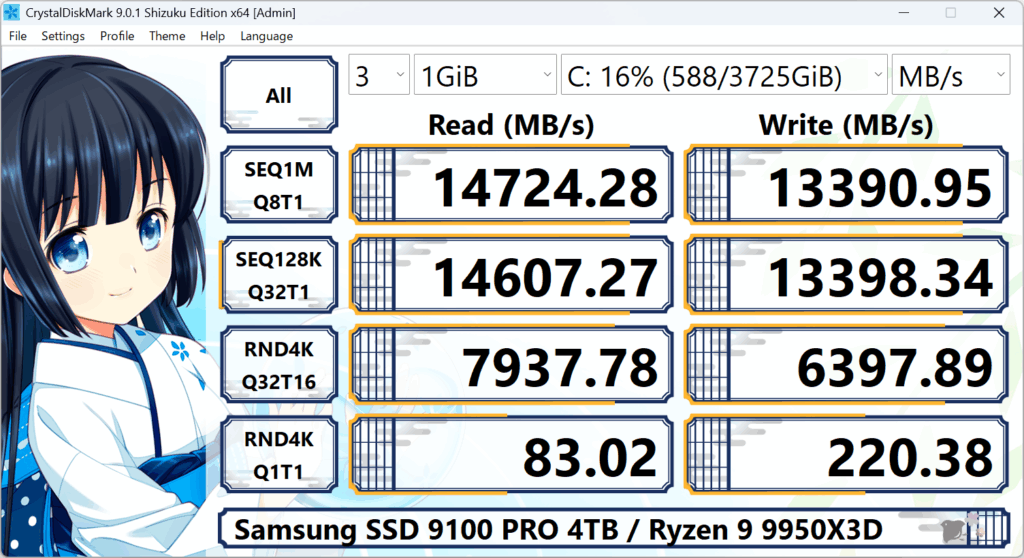
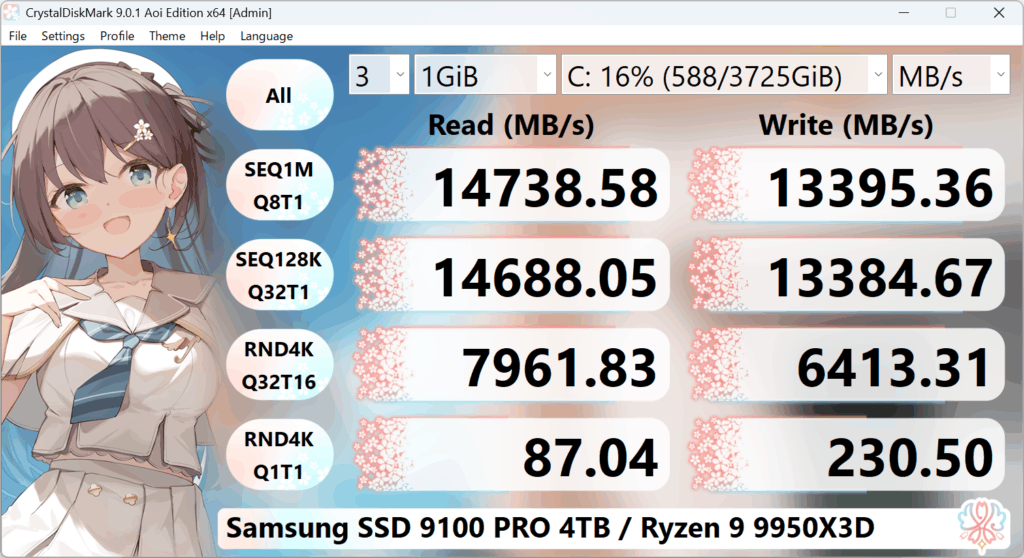
The benchmark engine and accuracy are the same. Only the user interface and themes differ: Standard has the classic look (Dark, Flower, DarkRed); Shizuku and Aoi offer character-themed UIs and different visual styles. Choose whichever you prefer.
Simple, trusted, and widely used for over 15 years.
Close heavy applications — Browsers, games, and backup software can affect results. For consistent numbers, close unnecessary programs and avoid running other disk-heavy tasks during the benchmark.
Use the right profile — For NVMe SSDs, select the NVMe SSD profile so queue depth and threads are set appropriately. For USB or slow drives, use a small test size (e.g. 64 MiB or 128 MiB) so the test doesn’t take too long or time out.
Run as administrator when needed — If the benchmark fails with “access denied” or similar, try running CrystalDiskMark as administrator. Exception: for network drives, run without admin rights so the drive appears in the list.
Don’t over-benchmark SSDs — Benchmarking writes a lot of data and uses write cycles. Running it occasionally is fine; running it constantly can shorten SSD life. For USB flash drives, use small test sizes.
Save or copy results — Use the Copy button or save as image to keep a record or share with support when troubleshooting. Note the test size and profile used so you can repeat the test later.
Same benchmark engine; different looks. Pick Standard for a classic UI, or Shizuku/Aoi for themed editions.
Standard look. Default and NVMe SSD presets, themes (Dark, Flower, DarkRed). Ideal for most users.
Download →
Alternative character-themed UI with multiple Shizuku themes. Same benchmark accuracy as Standard.
Download →
Aoi-themed interface with light/dark variants. Perfect if you prefer this visual style.
Download →| OS | Windows XP / Vista / 7 / 8 / 8.1 / 10 / 11, Windows Server 2003 / 2008 / 2012 / 2016 / 2019 / 2022 / 2025 |
| Architecture | x86, x64, ARM64 |
Not supported: Windows 95/98/Me/NT4/2000. Installer and x64 build do not support Windows XP/2003 (NT5.x).
Download the latest CrystalDiskMark 9.0.2 (Standard, Shizuku, or Aoi). Portable ZIP or installer available.
Download Now